segunda-feira, 20 de abril de 2020

Why Receipt Notifications Increase Security In Signal

This blog post is aimed to express and explain my surprise about Signal being more secure than I thought (due to receipt acknowledgments). I hope you find it interesting, too.

Signal, and especially its state update protocol, the Double Ratchet algorithm, are widely known for significantly increasing security for instant messaging. While most users first see the end-to-end security induced by employing Signal in messaging apps, the properties achieved due to ratcheting go far beyond protecting communication against (active) attackers on the wire. Due to updating the local device secrets via the Double Ratchet algorithm, the protocol ensures that attackers, who temporarily obtain a device's local storage (on which Signal runs), only compromise confidentiality of parts of the communications with this device. Thus, the leakage of local secrets from a device only affects security of a short frame of communication. The exact duration of compromise depends on the messaging pattern among the communicating parties (i.e., who sends and receives when), as the state update is conducted during the sending and receiving of payload messages.


The Double Ratchet

The Double Ratchet algorithm consists of two different update mechanisms: the symmetric ratchet and the asymmetric ratchet. The former updates symmetric key material by hashing and then overwriting it with the hash output (i.e.,  k:=H(k)). Thus, an attacker, obtaining key material can only predict future versions of the state but, due to the one-wayness of the hash function, cannot recover past states. The asymmetric ratchet consists of Diffie-Hellman key exchanges (DHKE). If, during the communication, party A receives a new DH share gb as part of a message from the communication partner B, then A samples a new DH exponent a and responds with the respective DH share ga in the next sent message. On receipt of this DH share, B will again sample a new DH exponent b' and attach the DH share gb' to the next message to A. With every new DH share, a new DHKE gab is computed among A and B and mixed into the key material (i.e., k:=H(k,gab)). For clarity, I leave out a lot of details and accuracy. As new DH shares ga and gb are generated from randomly sampled DH exponents a and b, and the computation of gab is hard if neither a nor b are known, the key material recovers from an exposure of the local secrets to an attacker after a new value gab was freshly established and mixed into it. Summing up this mechanism, if an attacker obtains the local state of a Signal client, then this attacker cannot recover any previously received message (if the message itself was not contained in the local state), nor can it read messages that are sent after a new gab was established and mixed into the state. The latter case happens with every full round-trip among A and B (i.e., A receives from B, A sends to B, and A receives again from B).
Conceptual depiction of Double Ratchet in Signal two years ago (acknowledgments were only protected between client and server). The asymmetric ratchet fully updates the local secrets after one round-trip of payload messages.

Research on Ratcheting

During the last two years, the Signal protocol inspired the academic research community: First, a formal security proof of Signal was conducted [1] and then ratcheting was formalized as a generic primitive (independent of Signal) [2,3,4]. This formalization includes security definitions that are derived via 1. defining an attacker, 2. requiring security unless it is obvious that security cannot be reached. Protocols, meeting this optimal notion of security, were less performant than the Double Ratchet algorithm [3,4]. However, it became evident that the Double Ratchet algorithm is not as secure as it could be (e.g., recovery from exposure could be achieved quicker than after a full round-trip; see, e.g., Appendix G of our paper [3]). Afterwards, protocols (for slightly weakened security notions) were proposed that are similarly performant as Signal but also a bit more secure [5,6,7].

Protecting Acknowledgments ...

In our analysis of instant messaging group chats [8] two years ago (blog posts: [9,10]), we found out that none of the group chat protocols (Signal, WhatsApp, Threema) actually achieves real recovery from an exposure (thus the asymmetric ratchet is not really effective in groups; a good motivation for the MLS project) and that receipt acknowledgments were not integrity protected in Signal nor WhatsApp. The latter issue allowed an attacker to drop payload messages in transmission and forge receipt acknowledgments to the sender such that the sender falsely thinks the message was received. Signal quickly reacted on our report by treating acknowledgments as normal payload messages: they are now authenticated(-encrypted) using the Double Ratchet algorithm.

... Supports Asymmetric Ratchet

Two years after our analysis, I recently looked into the Signal code again. For a training on ratcheting I wanted to create an exercise for which the lines in the code should be found that execute the symmetric and the asymmetric ratchet respectively. Somehow I observed that the pure symmetric ratchet (only updates via hash functions) was nearly never executed (especially not when I expected it) when lively debugging the app but almost always new DH shares were sent or received. I realized that, due to encrypting the receipt acknowledgments now, the app always conducts full round-trips with every payload message. In order to observe the symmetric ratchet, I needed to temporarily turn on the flight mode on my phone such that acknowledgments are not immediately returned.
Conceptual depiction of Double Ratchet in Signal now (acknowledgments encrypted). The asymmetric ratchet fully updates the local secrets after an acknowledgment for a message is received.

Consequently, Signal conducts a full DHKE on every sent payload message (in case the receiving device is not offline) and mixes the result into the state. However, a new DH exponent is always already sampled on the previous receipt (see sketch of protocol above). Thus, the exponent for computing a DHKE maybe remained in the local device state for a while. In order to fully update the state's key material, two round-trips must be initiated by sending two payload messages and receiving the resulting two acknowledgments. Please note that not only the mandatory receipt acknowledgments are encrypted but also notifications on typing and reading a message.

If you didn't understand exactly what that means, here a tl;dr: If an attacker obtains your local device state, then with Signal all previous messages stay secure and (if the attacker does not immediately use these secrets to actively manipulate future conversations) all future messages are secure after you wrote two messages (and received receipt acknowledgments) in all of your conversations. Even though this is very (in practice certainly sufficiently) secure, recent protocols provide stronger security (as mentioned above) and it remains an interesting research goal to increase their performance.

[1] https://eprint.iacr.org/2016/1013.pdf
[2] https://eprint.iacr.org/2016/1028.pdf
[3] https://eprint.iacr.org/2018/296.pdf
[4] https://eprint.iacr.org/2018/553.pdf
[5] https://eprint.iacr.org/2018/889.pdf
[6] https://eprint.iacr.org/2018/954.pdf
[7] https://eprint.iacr.org/2018/1037.pdf
[8] https://eprint.iacr.org/2017/713.pdf
[9] https://web-in-security.blogspot.com/2017/07/insecurities-of-whatsapps-signals-and.html
[10] https://web-in-security.blogspot.com/2018/01/group-instant-messaging-why-baming.html

More info


15 Important Run Commands Every Windows User Should Know

There are several ways to efficiently access the files, folders, and programs in Windows operating system. We can create shortcuts, pin programs to the taskbar, Start menu shortcuts etc. but we can't do it for all programs in many cases. However, the Windows Run Command box is one of the most efficient ways of accessing system programs, folders, and settings.

In this article, I am going to share 15 most important Run commands for Windows users. These commands can make it easier to manage a lot of tasks.
How to open Windows Run command box?
You need to press Win+R (Hold Windows button then Press R)

Important Run Commands Every Windows User Should Know

1. %temp%
This is the fastest way to clear the temporary files from your computer. It can save a lot of space which was being wasted by temporary files.
2. cmd 
This command will open the windows DOS command prompt. Windows command prompt is very useful for performing many tasks which are not possible using graphical user interface.
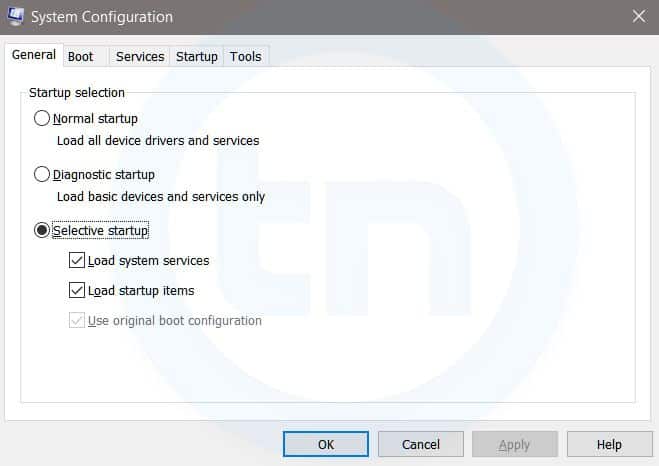
3. MSConfig
Windows Run Command - MSconfig-compressed
Windows System Configuration
This command will open Windows System Configuration where you can edit different things like the boot options, startup options, services, etc.
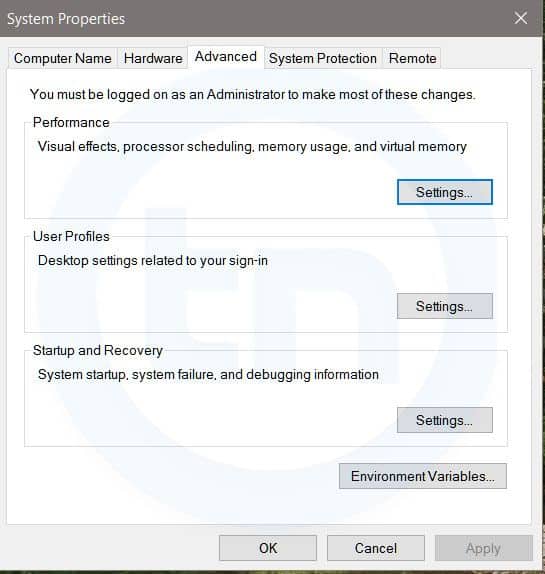
4. sysdm.cpl
Windows Run Command - sysdm cpl-compressed
System Properties window
This command will open the System Properties window, Where you can change the system protection and performance related many settings
5. Powershell
Powershell is very similar the command prompt. Just type this command in the Run dialog box, and you will have your PowerShell opened without administrator privileges.
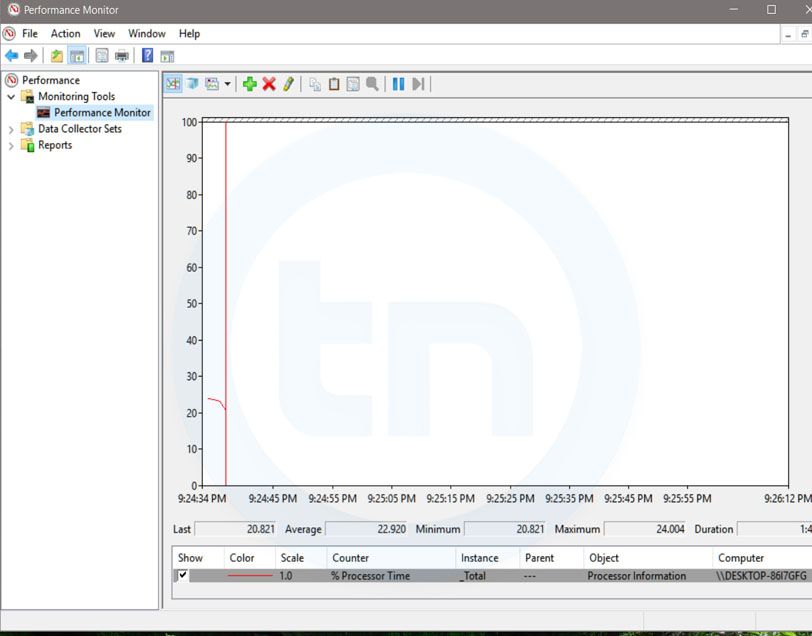
6. perfmon.msc
Windows Run Command - perfmon msc-compressed
Windows System Performance monitor
This command can be used to monitor the performance of your computer. There are plenty of options for monitoring the system performance
7. regedit
Regedit Run command is used to open the Windows Registry. It is a hierarchical database that hosts all the configurations and settings of Windows operating system, it's users and the installed software.
8. \ (Backslash)
This is one of the lesser known Run commands. Just enter the backslash into the Run dialog box and it will open up the C drive. It is one of the quickest ways to access the C drive.
9. . (Dot)
This is yet another lesser known Run command. When executed, it opens the current user's home folder which hosts all the other local folders like the Downloads, Documents, Desktop, Pictures, etc.
10. .. (Double Dots)
When you execute these two dots in the Run dialog box, it will open up the Users folder which is located directly on the C drive
11. Control
This command will open the control panel. Control panel is used for managing all the system settings and programs
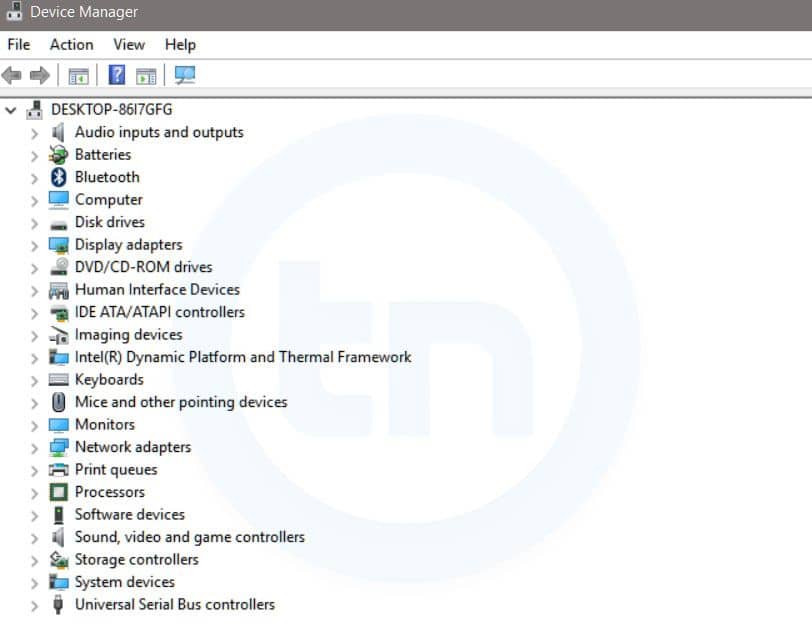
12. hdwwiz.cpl
Windows Run Command - hdwwiz-
Windows Device Manager
This command is used to open the Device Manager in Windows. You can manage all the device connected internally or externally to your PC.
13. Notepad
The quickest way to open notepad in Windows. Just type this command in Run Box and hit enter.
14. osk
This command will open On-Screen Keyboard on your display monitor. You can easily touch and type or use your mouse for typing.
15. taskmgr 
This command will open task manager where you can manage all the processes and programs running on Windows Operating system.
More information

  1. Pentest Tools Nmap
  2. Hacker Tools 2020
  3. Pentest Tools Website Vulnerability
  4. Pentest Tools
  5. Hacker Tools Windows
  6. Wifi Hacker Tools For Windows
  7. Hack Tools
  8. Pentest Tools Review
  9. World No 1 Hacker Software
  10. Hak5 Tools
  11. How To Install Pentest Tools In Ubuntu
  12. Hacking Tools For Kali Linux
  13. Hacker Techniques Tools And Incident Handling
  14. Computer Hacker
  15. Hacker Tools
  16. Tools 4 Hack
  17. Hacking Tools And Software
  18. Growth Hacker Tools
  19. Pentest Tools For Windows
  20. Pentest Tools For Ubuntu
  21. Hacker Tool Kit
  22. How To Hack
  23. Hack Tools
  24. Hacker Tools 2020
  25. Wifi Hacker Tools For Windows
  26. Hak5 Tools

Linux Command Line Hackery Series - Part 5


Welcome back to the Linux Command Line Hackery series, this is Part-V of the series. Today we are going to learn how to monitor and control processes on our Linux box, so wrap your sleeves up and let's get started.

Command:    ps
Syntax:           ps [options]
Description:  ps displays information about the currently running processes. Some of the common flags of ps are described briefly below
Flags: 
  -A or -e -> select all processes
  -a -> select all processes except both session leaders and processes not associated with a terminal.
  T -> select all processes associated with current terminal
  -u <username or id> -> select all processes of a given user or userlist

Open up a terminal and type ps:

ps

what you'll see is a list of processes currently running in your terminal. One important thing to notice in the output is what's called as PID which stands for process ID. It is the number that uniquely identifies a process. Just keep that PID concept in mind we'll use it soon.

OK I know that's not really what you want to see rather you want to see all the processes that are currently running on your box. Don't worry we have flags to rescue, in order to see all the processes you can use the -e flag like this:

ps -e

Boom! you get a long list of processes currently running on your machine (don't stare at me like that, you asked and I gave you that). If you want to see processes of a particular user you can type the following command in your terminal:

ps -u bob

here "bob" is a username. This command will list all processes of the user with effective user name of bob.

You can do a full-format listing of the processes using the -f flag like this:

ps -fu bob

But the output of the ps command is a snapshot not really a live preview of what is going on in your box. I know your next question is going to be something like this, Isn't there a command in Linux that gives me a live updating information of the processes? Yes, there is a command called top that we'll learn about next.

Command:    top
Syntax:           top [options]
Description:  top gives a dynamic real-time view of a running system. That is, it gives the up-to-date information about all the processes running on your Linux box (sounds fun!). Besides giving information about current processes and threads top also provides a brief system summary.

To start top just type this command:

top

and you'll get a nice and cute looking ugly display :). Well what the heck is going on here you might ask, right? What you get is information about what is going on with your computer. To see what more can you do with top just type <h> within the program window and you'll be given list of options that you can play with.

OK looking at what processes are going on in your box is cool but what if you want to terminate (or close) a process, is there a command line utility for that? Yes, there is and that's what we are going to look at next.

Command:   kill
Syntax:          kill [options] <pid> [...]
Description:  kill is used to send a signal to process which by default is a TERM signal meaning kill by default sends a signal of termination to process (Cruel guy). To list the available signals we can use the -l or -L flag of the kill command.


To simply terminate a process we provide kill command a PID (process ID) and it will send the TERM signal to the process. So to kill a process first we'll list the running processes and then we'll keep the PID of the process in mind that we want to terminate. After that we'll issue the kill command with the PID that we just found.

ps -ax
kill 1153

the above command will send a TERM signal to the process whose PID is 1153, as simple as that.

We can also use our already learned skills to refine the output of ps command. Say we have a xterm terminal running on our box and we want to terminate it. By using ps command all alone we'll get a long listing of all processes running on our box. But we can limit the output of ps command to just those processes that we're interested in by piping ps command with the grep command like this:

ps -ax | grep xterm

wow! that's amazing, we're able to pull out only those results from the ps command that contained xterm in them. Isn't that a cool trick? But what is that vertical bar ( | ) doing in the middle, you may be thinking, right? Remember we learned about the input and output re-directors previously, the vertical bar (pipe in geeky terms) is another re-director whose task is to redirect the output of one command as input to another command. Here the pipe redirects the output of ps -ax command as input to grep command and of-course from the previous article you know that grep is used to search for a PATTERN in the given input. That means the above command searches for the xterm word in the output of ps -ax command and then displays just those lines of ps -ax command which contain xterm. Now get that PID and kill that process.

That's it for today, try these commands up on your own box and remember practice is gonna make you master the Linux command line. :)

Related news


  1. Hacking Tools Usb
  2. Hackrf Tools
  3. Nsa Hack Tools Download
  4. Pentest Tools Framework
  5. Hack Tools For Ubuntu
  6. Hack And Tools
  7. Pentest Tools Review
  8. Pentest Tools For Windows
  9. Hacking Tools For Kali Linux
  10. Hacker Tools Mac
  11. Hacker Tools Software
  12. Hacker Tools Apk
  13. What Are Hacking Tools
  14. Pentest Tools For Mac
  15. Hacking Tools Windows
  16. Hacking Tools Pc
  17. Hack Tools For Games
  18. Hack Tools For Ubuntu
  19. Black Hat Hacker Tools
  20. Pentest Tools Free
  21. Hacker Tools Software
  22. Hacking Apps
  23. Best Pentesting Tools 2018
  24. Pentest Tools Windows
  25. Ethical Hacker Tools
  26. What Is Hacking Tools
  27. Install Pentest Tools Ubuntu
  28. How To Make Hacking Tools
  29. New Hack Tools

TYPES OF HACKER

7 Types of hacker 

1-Script Kiddies-They are  just download overused software & watch youtube video on how to use it. Script kiddies don't care about hacking.

2-White Hat-They are the good guys of the hacker world. They also known as Ethical Hacker.

3-Black Hat-They finds bank or other companies with weak security and steal money or credit card information. They also known as cracker. They are dangerous because they are illegal to gain unauthorized access.

4-Gray Hat-They don't steal money or information sometimes they deface a website or they don't help people for good.

5-Green Hat-These are the hacker "noobz" but unlike Script Kiddies.They care about Hacking  and strive to become full-blown hacker.

6-Red Hat-These are the vigilantes of the hacker world. They are like White Hats in that they halt Black Hats but these folks are downright SCARY to those who have ever tried so much as penetrest.

7-Blue Hat-If a Script Kiddy took revenge he/she might become a Blue Hat.Most Blue Hats are noobz.They have no desire to learn.

More articles


  1. Hacker Tools Apk
  2. How To Make Hacking Tools
  3. Hack Tools Github
  4. Hacking Tools For Pc
  5. Pentest Tools List
  6. Pentest Tools List
  7. Hacking Tools Free Download
  8. Hacker Tools Free Download
  9. Hack Tools
  10. Hacking Tools Name
  11. Hacker Tools For Mac
  12. Hacker Tools Software
  13. Pentest Box Tools Download
  14. Hacker Tools Github
  15. Hacking Tools Kit
  16. Pentest Tools Subdomain
  17. Hack Apps
  18. Growth Hacker Tools
  19. Hacking Tools And Software
  20. Beginner Hacker Tools
  21. Pentest Tools Online
  22. Hacking Apps
  23. Pentest Box Tools Download
  24. Github Hacking Tools
  25. Hack Tools 2019
  26. Hacking Tools Hardware
  27. Hacking Tools
  28. Github Hacking Tools

How To Recover Files That Are Deleted From Recycle Bin

How To Recover Files That Are Deleted From Recycle Bin

How To Recover Files That Are Deleted From Recycle Bin

How To Recover Files That Are Deleted From Recycle Bin

Well, Windows users have a bad habit of removing files from recycle bin. Deleting useless files from Recycle Bin helps a user to save some storage space which can improve the speed of a computer. However, Windows users do that more frequently and later regret. Actually, Recycle Bin is a place from where we can get back our deleted files and folders.
Sometimes, we accidentally delete our important files and folders and due to some reason we lose them from Recycle bin too! At that time, we search for recovery methods. Well, there are many methods available over the web which can help you to recover deleted files from computer, but, when it comes to reliability, nothing can beat EaseUS.

What Is EaseUS Data Recovery Wizard?

EaseUS is one of the leading software providers which is known for its data recovery programme. EaseUS offers some free data recovery software that can help you to recover deleted, formatted or lost data from PC, laptop or removable device easily and quickly.
One of the best thing about EaseUS is that it provides tools for recycle bin recovery which can help you to get back files that you have deleted from the Recycle bin itself. EaseUS Data Recovery Wizard free can easily recover lost files, pictures, documents, videos and more from deleting, formatting, partition loss, OS crash, virus attack and other data loss cases.

How To Recover Deleted Files?

If you are struggling to get back your lost data files, then here is an easy data recovery method which will help you to get back deleted files on your computer. Below, we are going to share a mini guide on how to use EaseUS Recycle Bin Recovery to get back your deleted data.
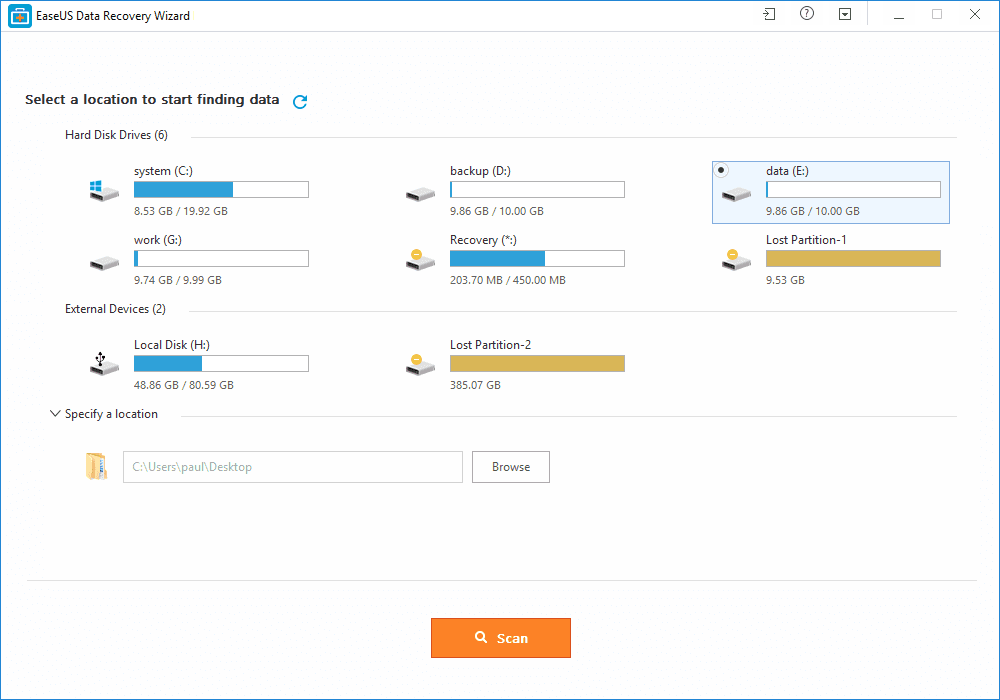
Step 1. First of all, you need to download and install EaseUS Data Recovery Wizard on your Windows computer and then launch it normally. You need to select the location where you want to scan and then click on 'Scan'
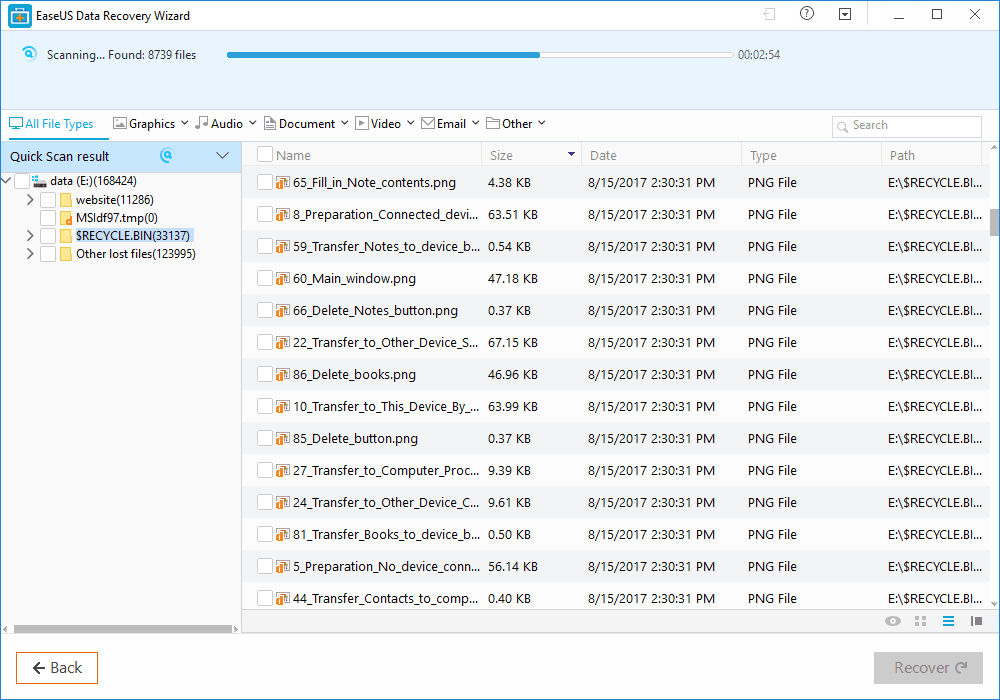
Step 2. Now, wait for few minutes until the tool finishes scanning your drive. The tool search for files that got deleted or cleaned from the Recycle Bin.
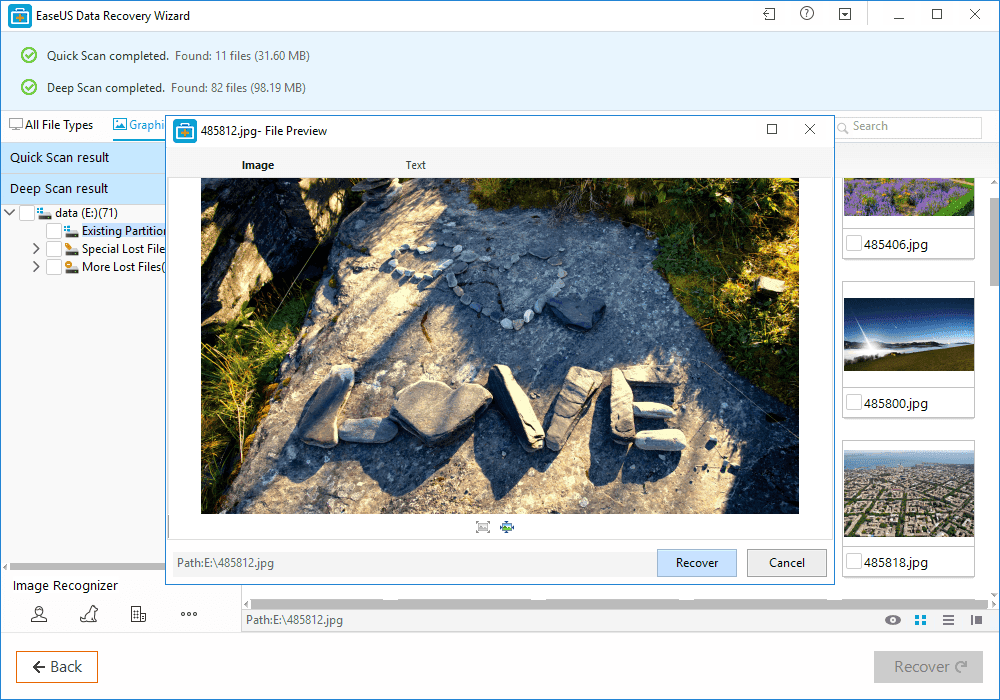
Step 3. Now it will show you files that you can recover. Here you need to click on the file which you want to recover and click on 'Recover'
That's it, you are done! This is how you can use EaseUS data recovery to get back your deleted files on your computer.

Benefits of EaseUS Data Recovery

Well, the data recovery tool provided by EaseUS comes with many benefits. It can not only recover accidentally deleted files, but it can also recover data in case of Virus Attacks, Hard Disk Damage, OS Crash etc.
You can also use this awesome data recovery wizard to recover deleted files from External Disk, USB Drive, Camcorder, Mobile Devices, Zip Drive, iPod, Music Player and more.
Overall, this is one of the best data recovery tools you can have on your Windows computer. EaseUS Data Recovery also has a free version with restricted features. Overall, this is a stress-free solution to get back your deleted files

More info